Troubleshoot setup and lip sync
v0.3.0 · UE 5.8.2 / Windows x64
The model cannot be found
Section titled “The model cannot be found”Check that you downloaded the model-included release ZIP, not GitHub’s “Source code” archive. The Model setting should be /LAMAudio2Expression/Models/LAM_A2E.
If it works in the editor but fails in a packaged build, add /LAMAudio2Expression/Models to Packaging → Additional Asset Directories to Cook. See installation.
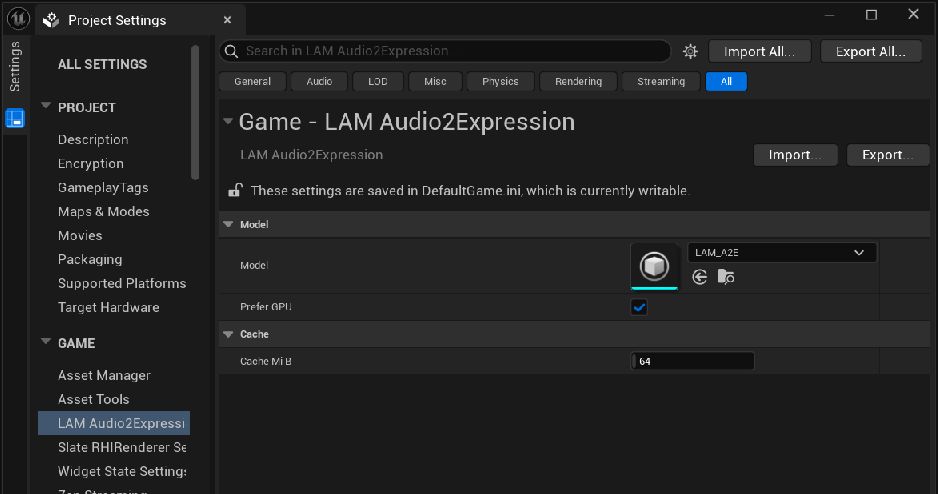
Select the model in Project Settings · Open full-size image
- Select /LAMAudio2Expression/Models/LAM_A2E in Model.
- The capture shows Prefer GPU enabled and Cache MiB 64.
Captured 2026-09-30 · UE 5.8.2 · Plugin 1860d0e · Demo 9dee71d · Operation included in v0.3.0.
Audio plays but the face does not move
Section titled “Audio plays but the face does not move”- Confirm
Apply LAM ARKit Curvesis connected in the character’s AnimBP. - Confirm Source Component references the component performing analysis and playback.
- Check that Alpha is nonzero and Curve Profile has not disabled the required curves.
- Check for matching morph targets such as
jawOpen, or that your rig consumes the curves.
Custom bone-driven rigs are not converted automatically. See expression curves.
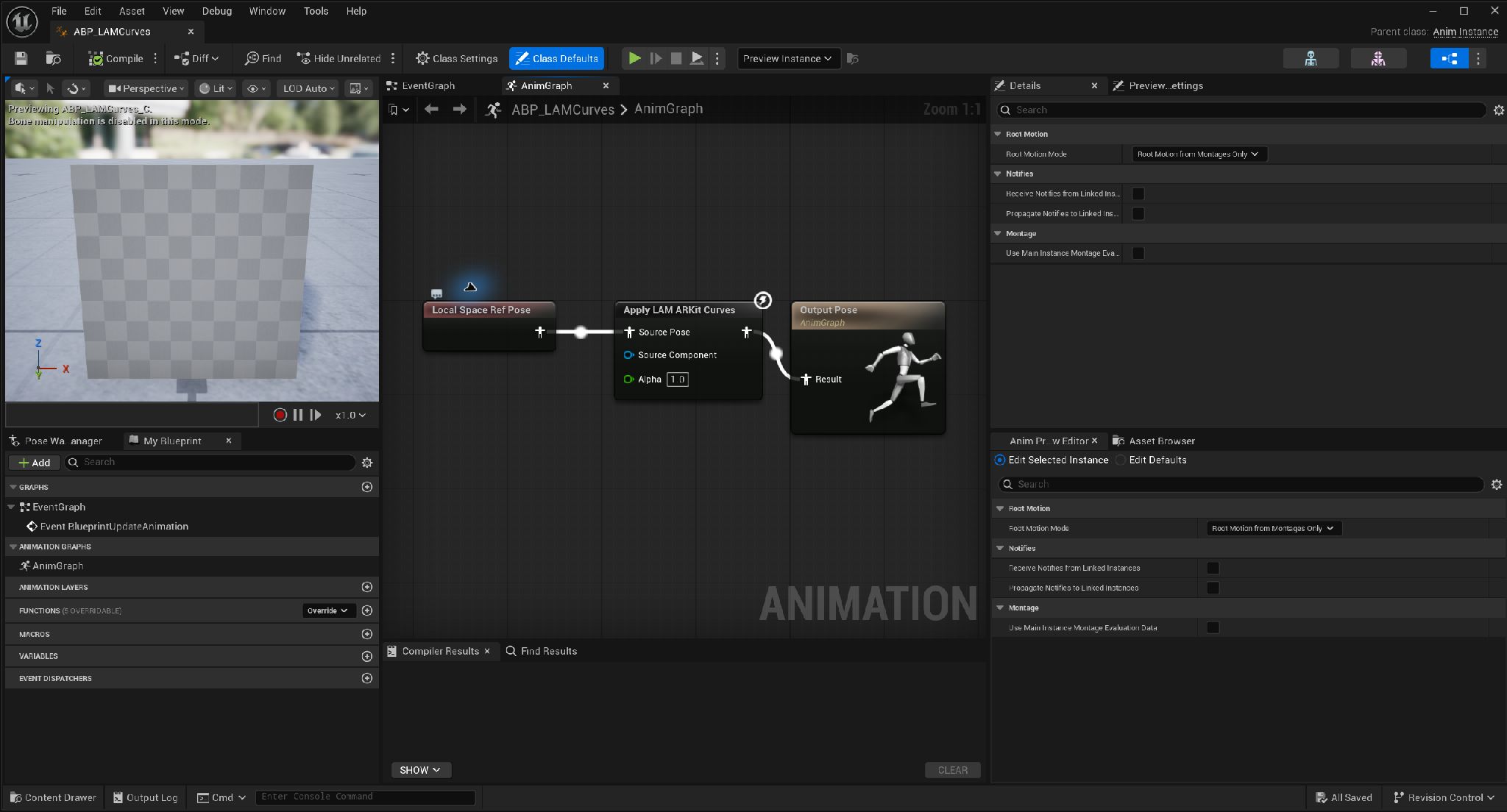
Apply ARKit expression curves to the input pose · Open full-size image
- Ref Pose is a placeholder in this example. Supply your existing animation pose.
- Assign the analysis/playback LAM to Source Component. If empty, the owning Actor is searched.
- Connect the output to Output Pose.
Captured 2026-09-30 · UE 5.8.2 · Plugin 1860d0e · Demo 9dee71d · Operation included in v0.3.0.
Analysis is rejected or an audio input cannot be used
Section titled “Analysis is rejected or an audio input cannot be used”The supported input is a standard mono / stereo SoundWave, 8–192 kHz, up to 300 seconds. SoundCue, MetaSound, Procedural SoundWave, and direct external WAV / MP3 input are unsupported. Loop-enabled SoundWaves are also rejected for playback.
Record the Error from async analysis Failed and playback On Playback Failed. Starting another analysis on the same component cancels the previous one. See Blueprint connections.
The first analysis takes longer
Section titled “The first analysis takes longer”Model loading and NNE instance initialization take time. Connect Progress to a loading indicator and start playback after Completed. Distinguish first-use timing from a fixed window after initialization. See validation.
Microphone or live input fails or falls behind
Section titled “Microphone or live input fails or falls behind”Check Windows microphone permissions, the recording device, and On Live State Changed. Inspect initialization, result-latency P95, and dropped intervals with Get Live Metrics. Avoid queuing many offline analyses on the shared worker. Supply PCM in small chunks from the game thread.
Microphone audio is not monitored through speakers. Hearing no audio alone does not mean capture failed. See live input.
Advance dialogue on natural completion
Section titled “Advance dialogue on natural completion”Use On Playback Finished. On Playback Ended also fires for stops and replacements, so do not advance dialogue unconditionally from it. Identify the relevant playback using the event’s Playback Id. See playback controls.
Report a problem
Section titled “Report a problem”Open a plugin issue or a demo issue. Include the plugin version, UE version, Editor / Shipping configuration, CPU / GPU, reproduction steps, and Error.Code / Error.Message. State whether you are using a release archive or a source build.
Baked-clip issues (v0.3.0)
Section titled “Baked-clip issues (v0.3.0)”If the generation menu is missing, check that v0.3.0 is installed and enabled, then restart the editor. See baked-clip troubleshooting for InvalidBakedClip, saving generated assets, regeneration, and missing cooked assets.
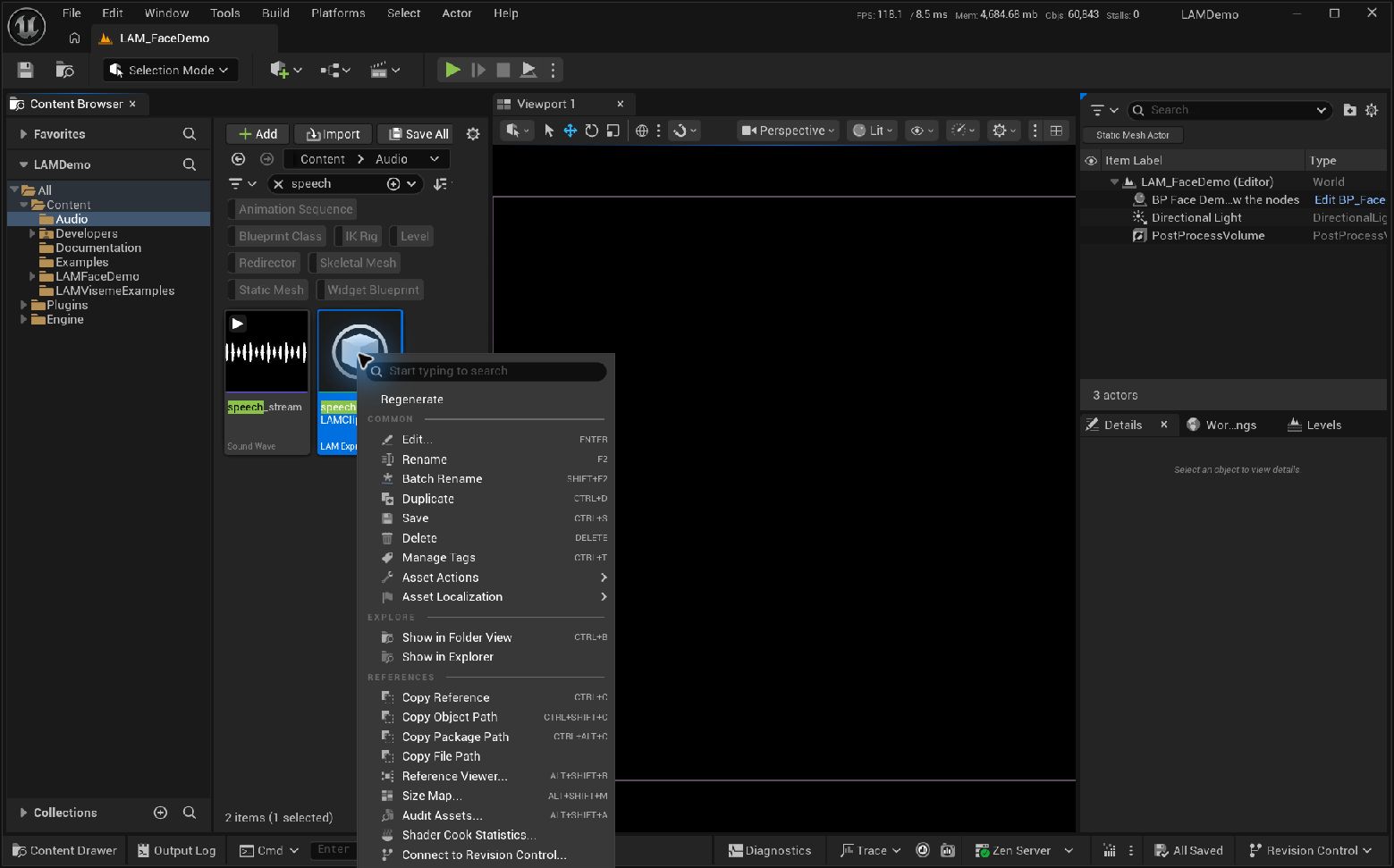
Regenerate a saved clip · Open full-size image
- Right-click the clip and choose Regenerate to use its stored settings.
Captured 2026-09-30 · UE 5.8.2 · Plugin 1860d0e · Demo 9dee71d · Operation included in v0.3.0.
Viseme curves do not move the mouth
Section titled “Viseme curves do not move the mouth”Check Profile Target Names against the mesh’s actual morph names. FiveVowelRules outputs zero for the nine consonant slots; use TemplateFit for a compatible 15-slot rig. Avoid applying full ARKit mouth curves and Viseme curves to the same mouth. For missing input channels in TemplateFit use FitWeight=0, not Scale=0. See Viseme setup and limitations.
Sequencer integration (public source)
Section titled “Sequencer integration (public source)”If the dedicated track is missing, build the relevant public Editor source (Plugin 1642ffa) instead of using the v0.3.0 ZIP, then check the Actor’s + Track menu. If the face does not move, check Target Components, the AnimBP’s Source Component, Apply LAM nodes and morph names.
For doubled audio, check other Audio Tracks and Play Expression Clip events. For incorrect trimmed playback positions, use PCM / Bink Audio. Regenerate after audio reimport and use Validate Assets to check Sequence references. See Sequencer limitations and fixes.