Edit audio and lip sync in UE5 Sequencer
Public source Plugin 1642ffa / Demo 2fbdcb3 · UE 5.8.2 / Win64
LAM Dialogue is a dedicated Unreal Engine 5 (UE5) Sequencer track that edits the audio and expression curves of a saved LAM Expression Clip in one section. Moving or splitting dialogue keeps audio and lip sync together, and scrubbing previews the mouth shape while stopped. No playback Blueprint events are required, but an AnimBP must apply the expression curves.
Prepare and build
Section titled “Prepare and build”Clone the public demo into a new working folder. UE 5.8.2 and the Visual Studio 2022 C++ environment are required. Do not run setup over an existing project or customized assets.
git clone --recurse-submodules https://github.com/yeczrtu/LAMAudio2Expression-UE-Demo.gitcd LAMAudio2Expression-UE-Demogit checkout 2fbdcb3758f89883af6c4659f835ea843502baa0git submodule update --init --recursive& 'D:\Unreal\UE_5.8\Engine\Build\BatchFiles\Build.bat' LAMDemoEditor Win64 Development "-Project=$PWD\LAMDemo.uproject" -WaitMutexReplace the engine path with your installation. This Demo pins Plugin 1642ffa. To generate clips from your own SoundWaves, also complete development and model setup. Playing an included saved Clip performs no model loading, audio analysis or inference during evaluation.
Prepare the character with:
- A
LAM Audio2Expression Componentand a Skeletal Mesh on the Actor. - Apply LAM ARKit Curves or Apply LAM Viseme Curves in the mesh’s AnimBP, with output names matched to the character’s expression curves.
- A Clip generated and saved through SoundWave baking. For trimmed audio and playback from an offset, set the SoundWave’s Sound Asset Compression Type to PCM or Bink Audio. Epic’s audio editing requirements
Add a LAM Dialogue track
Section titled “Add a LAM Dialogue track”- Open a Level Sequence and add the character Actor.
- Choose that Actor’s
+ Track → LAM Dialogue, rather than a master Audio Track. - Drag a saved Clip from the Content Browser onto LAM Dialogue, or right-click the track and choose Add LAM Clip.
- Move the playhead and check that the mouth follows its position. Use Sequencer’s play button for preview, or the Level Sequence Player in PIE.
Audio comes from the SoundWave referenced by the Clip. Do not duplicate the same audio on another Audio Track or call Play Expression Clip at the same time. Audio scrub audition follows UE’s Sequencer settings; expression evaluation also works while stopped.

LAM Dialogue in the Actor’s + Track menu · Open full-size image
- Choose LAM Dialogue from the Actor’s + Track menu.
Original capture of the menu contributed by the plugin. Open it from the target Actor’s + Track, not the master + Add menu.
Captured 2026-10-09 · UE 5.8.2 · Plugin 1642ffa · Demo 2fbdcb3 · Public source only; not included in v0.3.0 ZIPs.
Place and edit clips
Section titled “Place and edit clips”| Operation or setting | Audio and expression behavior |
|---|---|
| Move, duplicate, split, trim | Edit dialogue and expressions together using one section range |
| Start Offset / slip | Apply the same source offset to audio and expressions; check [+… s] in the section title |
| Volume | Key audio volume independently; expressions still update at 0 |
| Expression Weight | Key expression strength from 0 to 1, independently of volume |
| Section easing | Apply a common fade to audio and expressions |
| Overlapping sections | Mix audio and average ARKit 52 values by weight; clamp the total application weight to 0–1 |
| Outside the range | Release expression contribution and return to the AnimBP input pose; no held final frame or automatic 100 ms fade |
Expressions sample current sequence time − section start + Start Offset. Subsequences use the transformed local time. Audio callbacks and accumulated wall-clock time are not used as the expression clock.
Choose another Clip to change the audio. After reimporting a SoundWave, regenerate its Clip first. Content Browser Validate Assets checks LAM sections inside sequences and subsequences for missing clips, mismatched audio references and stale clips. It does not automatically analyze audio.
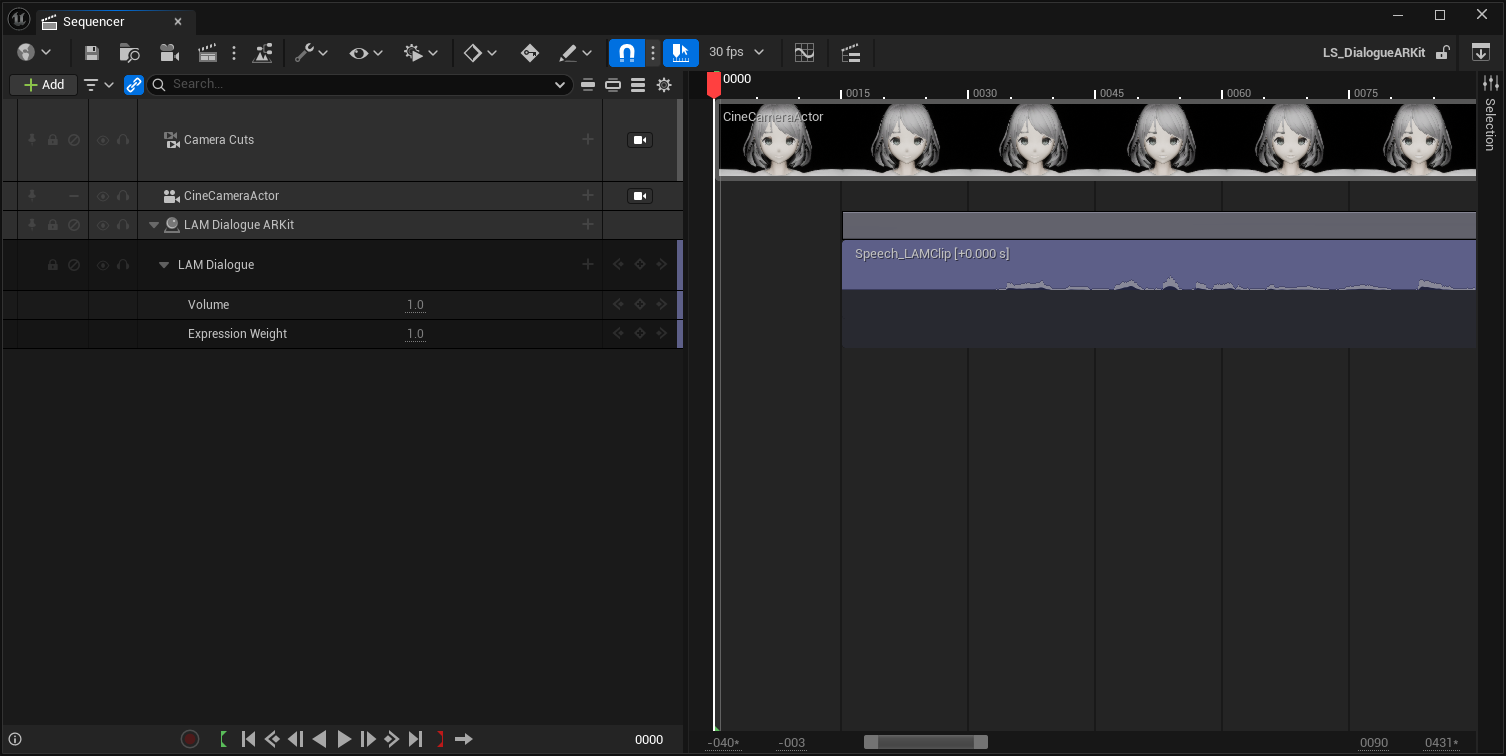
Clip waveform, start offset, volume and expression weight · Open full-size image
- Clip name and Start Offset. The waveform and expression share the section range.
- Volume controls audio loudness; this example is 1.0.
- Expression Weight controls expression strength; this example is 1.0.
The track is expanded to show both channels. Values are from the included example, not a new measurement. Open the full-size image for detail. Scroll horizontally within the image to keep the labels readable.
Captured 2026-10-09 · UE 5.8.2 · Plugin 1642ffa · Demo 2fbdcb3 · Public source only; not included in v0.3.0 ZIPs. · Credits and usage conditions
Target components and playback control
Section titled “Target components and playback control”A single LAM component and Skeletal Mesh on the bound Actor are selected automatically. If there are multiple candidates, right-click the track → Target Components and specify both LAM Component and Skeletal Mesh. Also explicitly connect the AnimBP’s Source Component to the same LAM component.
When Sequencer acquires control, it interrupts ordinary playback, microphone capture and PCM input. Ordinary playback ends with reason Interrupted. New Play Expression Clip, Start Microphone and Start PCM Stream requests are rejected while controlled. Use Blueprint Is Controlled By Sequencer to gate start requests if needed.
LAM Dialogue does not fire the component’s ordinary playback events. Use the Level Sequence Player to play, pause and stop, and manage volume in Sequencer. The component’s ordinary Playback Settings are not inherited.
While the editor is stopped or paused, the current position’s expression remains visible. Moving out of range, disabling or deleting a section, closing the Sequence, or stopping/finishing runtime playback releases control. Interrupted audio and live input do not resume automatically. Keep State is unsupported.
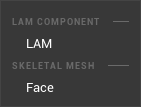
Choose targets in Target Components · Open full-size image
- Under LAM Component, choose the component referenced by the AnimBP.
- Under Skeletal Mesh, choose the target mesh; this example lists Face.
This is the submenu under the LAM Dialogue track’s context menu → Target Components. Candidate names depend on the Actor’s components.
Captured 2026-10-09 · UE 5.8.2 · Plugin 1642ffa · Demo 2fbdcb3 · Public source only; not included in v0.3.0 ZIPs.
Included examples and MRQ jobs
Section titled “Included examples and MRQ jobs”Public source includes these pairs under /Game/LAMSequencerExamples. The examples disable auto-play: open and scrub the Sequence, or play the LevelSequenceActor’s Sequence Player during PIE.
| Map | Sequence | Purpose |
|---|---|---|
| LAM_DialogueARKit | LS_DialogueARKit | Dialogue with an ARKit AnimBP |
| LAM_DialogueViseme | LS_DialogueViseme | Dialogue with a Viseme AnimBP |
| LAM_DialogueARKit | LS_DialogueShots | Two shots: parent Camera Cuts and child LAM tracks |
| LAM_DialogueARKit | LS_DialogueAudioSync / LS_StandardAudioReference | LAM / standard Audio references with matching ranges, offsets and splits |
Set both Map and Sequence to the matching pair in each Movie Render Queue job. MRQ_Temporal1 / MRQ_Temporal8 are 640×640 examples with PNG and WAV Audio. See development and validation commands for regenerating and testing examples.
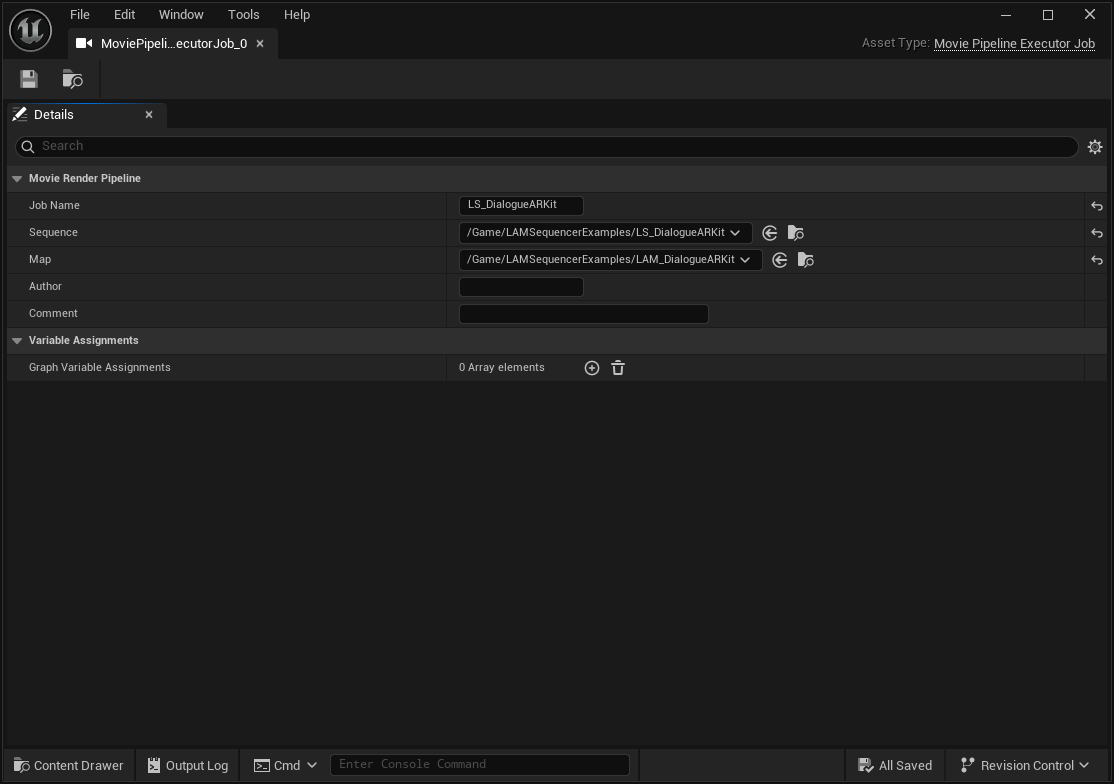
The Sequence and Map assigned to an MRQ job · Open full-size image
- Set Sequence to LS_DialogueARKit.
- The matching Map is LAM_DialogueARKit. Use the Viseme pair for a Viseme job.
The actual job prepared in the capture queue is opened in UE’s Details editor to show its references. In normal use, add the Sequence in Movie Render Queue and set the job’s Map. No render was run for this capture.
Captured 2026-10-09 · UE 5.8.2 · Plugin 1642ffa · Demo 2fbdcb3 · Public source only; not included in v0.3.0 ZIPs.
Configure MRQ output
Section titled “Configure MRQ output”- Add a Movie Render Queue job and set its Map and Sequence.
- Assign
MRQ_Temporal1orMRQ_Temporal8. Anti-aliasing → Temporal Sample Count is 1 or 8 respectively. - Select an image output such as PNG Sequence and WAV Audio, check the output folder and frame range, then render.
LAM interpolates expressions at every Temporal Sample’s evaluation time. Expressions still evaluate with the audio device disabled; this is separate from the requirements for writing an audio file. It does not guarantee deterministic behavior for other AnimBP states or physics. Epic’s Temporal Sampling specification
WAV Audio uses UE’s standard output. Epic identifies it as experimental, with possible gaps in non-Sequencer audio between shots and minor distortion in Sequencer audio at shot boundaries. Do not treat LAM as providing an independent audio export guarantee. Epic’s WAV Audio specification
For packaging, include the map that references the Level Sequence in cooking. The Sequence references its Clips and SoundWaves. Use Tools/package.ps1 -IncludeSequencer to include the supplied examples. See models and packaging.
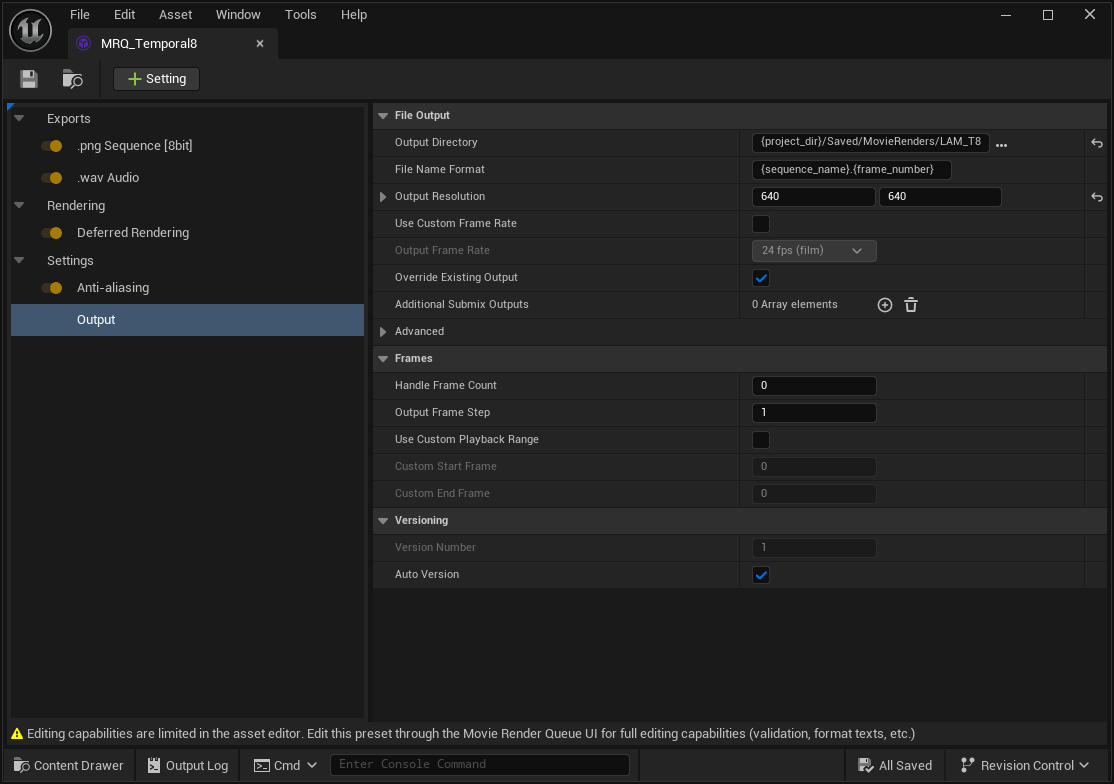
PNG and WAV exports in MRQ_Temporal8 · Open full-size image
- PNG Sequence writes the image frames.
- WAV Audio uses UE’s standard audio export.
- The included preset uses 640 × 640 output resolution.
The supplied preset is opened directly. Also check the output folder and frame range in the job configuration. See the text for WAV limitations at shot boundaries.
Captured 2026-10-09 · UE 5.8.2 · Plugin 1642ffa · Demo 2fbdcb3 · Public source only; not included in v0.3.0 ZIPs.
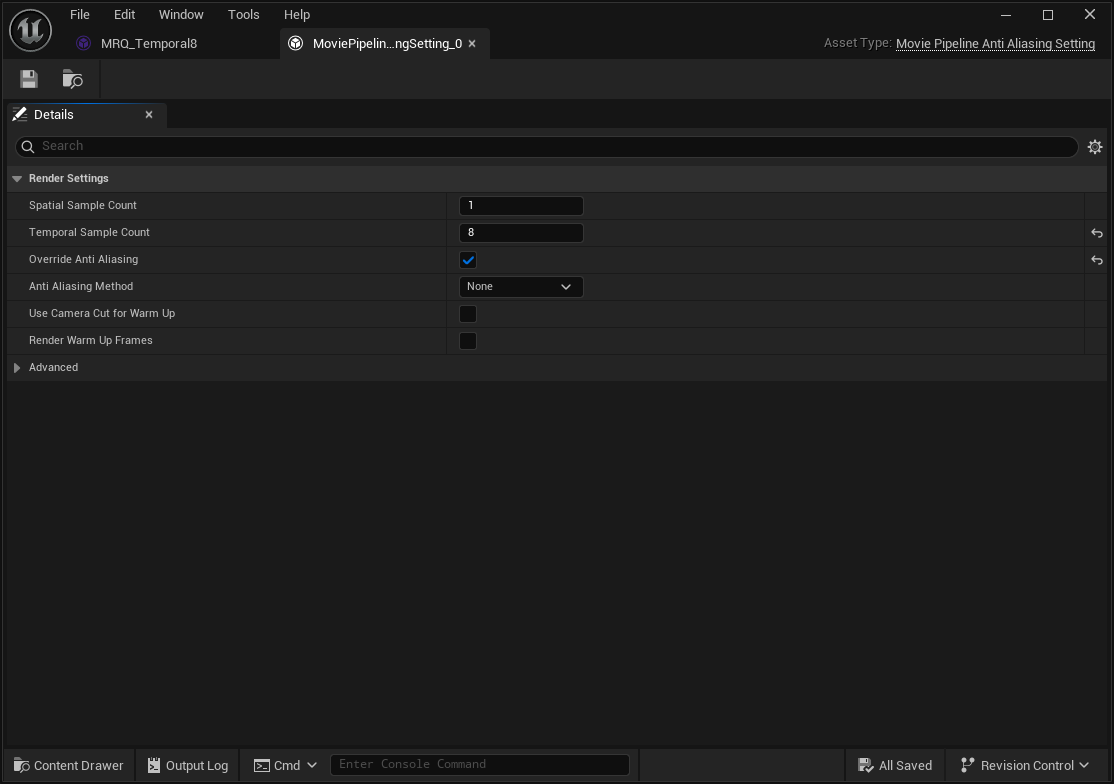
Temporal Sample Count in MRQ_Temporal8 · Open full-size image
- Temporal Sample Count is 8; MRQ_Temporal1 uses 1.
- Spatial Sample Count is 1; it is separate from Temporal Sample Count.
For readability, the actual Anti-aliasing settings object owned by MRQ_Temporal8 is opened in UE’s Details editor. Normally select Anti-aliasing in the MRQ configuration. Values were not changed for capture.
Captured 2026-10-09 · UE 5.8.2 · Plugin 1642ffa · Demo 2fbdcb3 · Public source only; not included in v0.3.0 ZIPs.
Scope and troubleshooting
Section titled “Scope and troubleshooting”The initial version supports 1× playback without looping. Pitch changes, time stretching, Time Dilation, retimed subsequences, reverse audio, AnimSequence export and dedicated MetaHuman rig conversion are unsupported. Backward scrubbing of expressions is distinct from reverse audio playback.
| Symptom | What to check |
|---|---|
| LAM Dialogue is missing | Build the pinned public Editor source instead of using the v0.3.0 ZIP; open the Actor’s + Track menu |
| Audio plays but the face does not move | Check Apply LAM in the AnimBP, output names, Target Components and Source Component |
| Dialogue plays twice | Remove a duplicate SoundWave Audio Track or an event that also plays the Clip |
| Trimmed audio starts at the wrong position | Use PCM or Bink Audio as Sound Asset Compression Type |
| Reference or stale-data error | Check the Clip and source audio, regenerate after audio reimport, and run Validate Assets |
| Ordinary playback or microphone start is rejected | Check Is Controlled By Sequencer, then explicitly start after Sequence control is released |
Replacing the same mesh’s AnimBP through an Animation Track / Control Rig is unsupported, as is simultaneous control of one LAM component by multiple independent Sequence Players.
Read the validation results
Section titled “Read the validation results”The published October 7, 2026 record reports 17 successful regression tests (one with warnings) on UE 5.8.2 / Windows 11 / RTX 3070. MRQ’s maximum error across 52 values was approximately 2.27×10⁻⁷, below the 1×10⁻⁵ tolerance. A standard Audio Track with the same PCM sound, range, offset and split matched all 32,000 audio frames.
Development / Shipping ARKit and Viseme runs recorded playback without a loaded model and release on stop. These are recorded results, not a guarantee for all environments or a new performance measurement. Complete mouse-interaction coverage and pixel matching after motion blur were not tested. See conditions, warnings and validation limits.