Bake SoundWave lip sync for UE5 playback
v0.3.0 · UE 5.8.2 / Win64
For recorded dialogue in Unreal Engine 5 (UE5), analyze a SoundWave once in the editor and save its ARKit 52 facial curves as a Clip asset. Play the loaded clip with the existing Play Expression Clip node to skip model loading, analysis decoding, and inference during playback. This removes the analysis wait, while asset loading and audio output can still introduce latency.
Choose a workflow and check support
Section titled “Choose a workflow and check support”| Use case | Workflow |
|---|---|
| Replay dialogue known in advance | Saved clips described here |
| Analyze a SoundWave during gameplay | Existing Analyze SoundWave Async |
| Process microphone or external PCM continuously | Live input |
Initial support is UE 5.8.2 / Win64, with standard SoundWave assets, mono / stereo, 8–192 kHz, up to 300 seconds, non-looping playback at 1× speed. Import external WAV / MP3 files into UE first. Existing dynamic analysis and live input remain available.
Clips store float32 ARKit 52 curves at 30 fps. The curve array alone uses about 366 KiB per minute, excluding audio and metadata. Visemes are not baked. When using the published source’s Viseme conversion, you can change the method, templates, input correction, and strengths during playback; its CPU cost remains.
Generate clips in the editor
Section titled “Generate clips in the editor”- Select one or more standard SoundWave assets in the Content Browser.
- Right-click and choose Generate LAM Expression Clip.
- Configure Style / Smooth / Suppress Silent Mouth / Symmetrize / Auto Blink / Blink Seed.
- Click Generate and wait for completion. Errors appear in the window and Output Log.
- Use Save All to write the generated assets to disk.
Style is an index from 0 to 11, not a set of 12 emotion labels. See expression curves for the settings. Generation completing does not save the asset to disk.
The output is <SoundWaveName>_LAMClip in the source audio’s folder. An existing output clip for the same sound is updated. A name occupied by another asset type or another source sound receives a suffix such as _1 or _2. Duplicate or rename the existing clip first to retain a different settings variant.
Batches process one sound at a time, record failures, and continue to the next item. Generation is unavailable during PIE. Cancel or closing the window stops the remaining work. An inference call already running finishes, but its result is discarded. Completed clips and the previous data of clips whose update failed are retained.
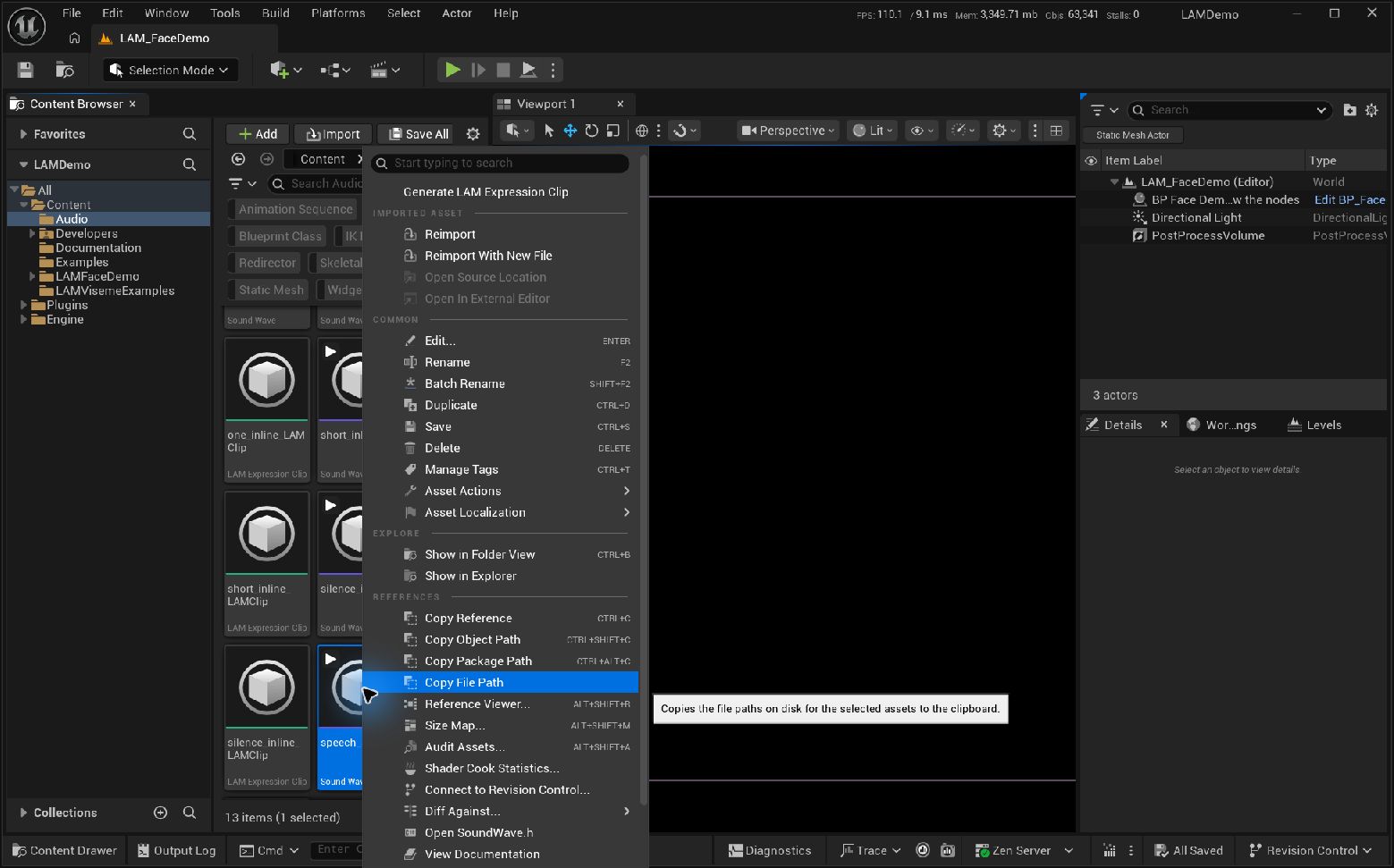
Start generation from the SoundWave context menu · Open full-size image
- Select a SoundWave in the Content Browser and choose this command.
Captured 2026-09-30 · UE 5.8.2 · Plugin 1860d0e · Demo 9dee71d · Operation included in v0.3.0.
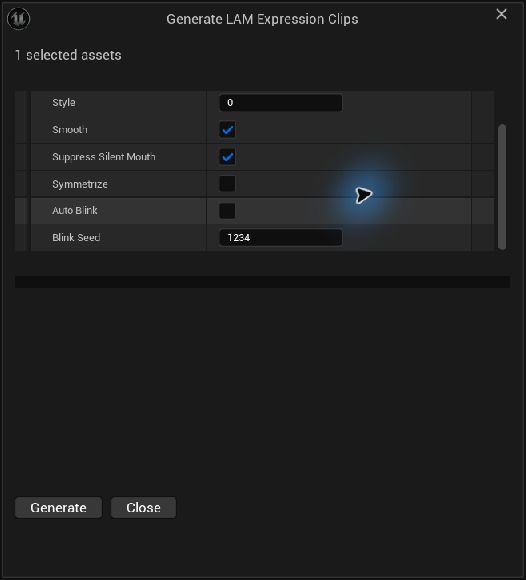
Analysis settings stored with the clip · Open full-size image
- Style is a speaker-style index from 0 to 11, not an emotion name.
- This example enables Smooth and Suppress Silent Mouth and disables Symmetrize.
- Auto Blink is disabled. Blink Seed 1234 is the seed used for automatic blinking.
After setting the options, click Generate at the bottom of the dialog. This generation dialog is included in v0.3.0.
Captured 2026-09-30 · UE 5.8.2 · Plugin 1860d0e · Demo 9dee71d · Operation included in v0.3.0.
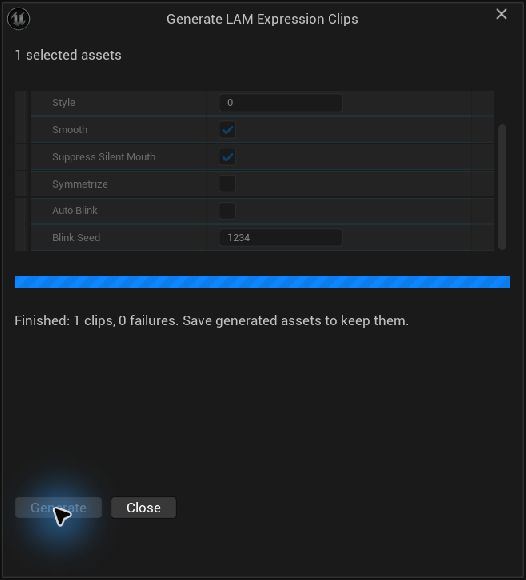
Check generation completion · Open full-size image
- This captured operation completed one clip with no failures. Saving is still required.
This illustrates generation of one audio asset, not a new benchmark or comprehensive validation result.
Captured 2026-09-30 · UE 5.8.2 · Plugin 1860d0e · Demo 9dee71d · Operation included in v0.3.0.
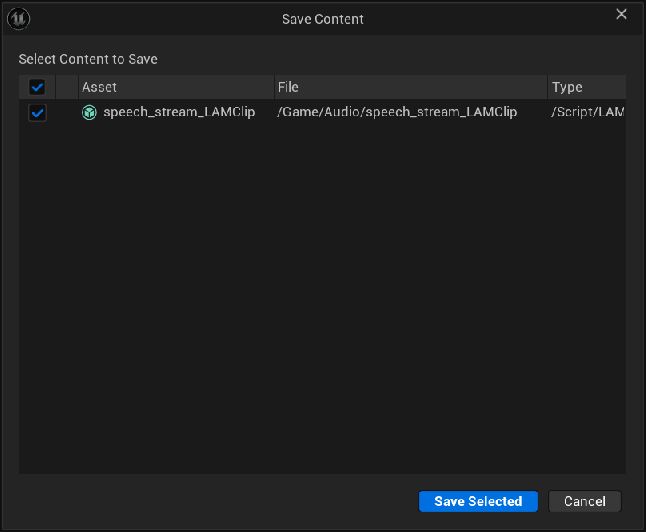
Save the generated clip to disk · Open full-size image
- Click Save All and check that the generated speech_stream_LAMClip is selected.
- Confirm with Save Selected.
Captured 2026-09-30 · UE 5.8.2 · Plugin 1860d0e · Demo 9dee71d · Operation included in v0.3.0.
Preload and play in Blueprint
Section titled “Preload and play in Blueprint”The generated asset is a ULAMBakedExpressionClip, derived from ULAMExpressionClip. Assign it directly to existing Clip input pins. You do not need to call Analyze SoundWave Async before playback.
Loading screen / BeginPlay  → Load the saved Clip and its source SoundWave  → Prime Sound (source SoundWave)
Later playback event  → Play Expression Clip (saved Clip)
AnimGraph  Existing pose → Apply LAM ARKit Curves → Output Pose
Connect the actor’s LAM component to Source Component in the AnimBP. The existing Blueprint setup and Curve Profile still apply. A Viseme-based setup uses the corresponding Apply LAM Viseme Curves node.
A hard reference to the clip also makes its source SoundWave a loading dependency. With a Soft Object Reference, wait for Async Load Asset to complete and retain the loaded clip in a variable or another reference. Call Prime Sound early for streaming audio and consider the sound’s Retain On Load setting.
Play Expression Clip With Settings, Pause / Resume / Seek / Stop, volume, fades, 2D / 3D, submixes, and playback events use the existing playback controls. Playback shares the saved curve data and interpolates 52 values per frame; it does not copy the entire array on every play.
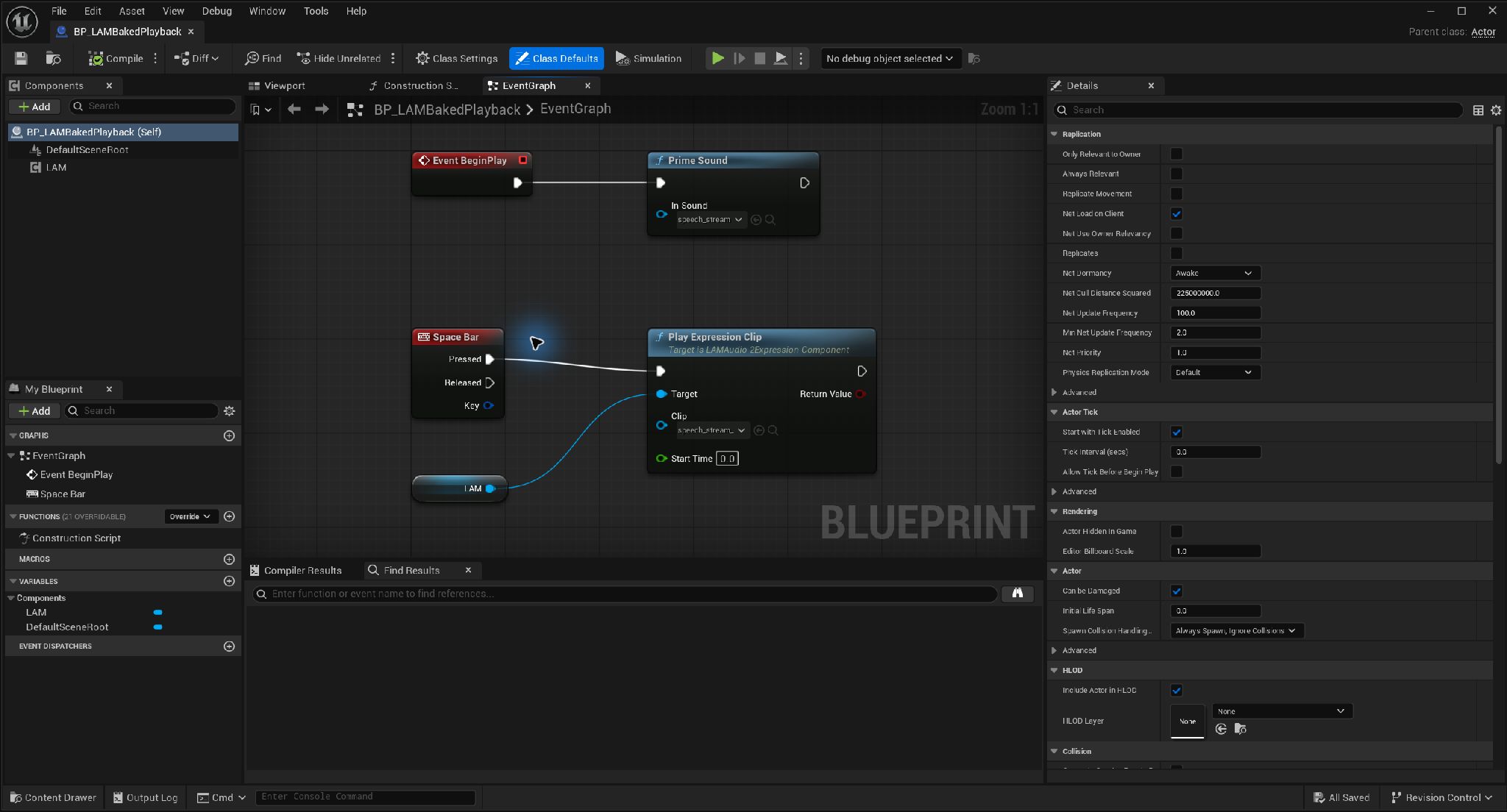
Prime audio and play a saved clip · Open full-size image
- Pass the original SoundWave to Prime Sound and request priming early.
- Set Clip on Play Expression Clip to the saved speech_stream_LAMClip.
Asset names are truncated by the field width. Prime Sound does not signal completion. An Actor using keyboard events must be configured to receive input.
Captured 2026-09-30 · UE 5.8.2 · Plugin 1860d0e · Demo 9dee71d · Operation included in v0.3.0.
Regenerate after changing audio or models
Section titled “Regenerate after changing audio or models”Right-click a clip and choose Regenerate to reuse that clip’s recorded analysis settings. To change the settings, use Generate LAM Expression Clip on the source sound instead.
Clips record the sound update GUID, input PCM SHA-1, model GUID, model path, and processing/format versions. After reimporting audio, changing its processing or compression settings, or updating the model, run UE’s standard Validate Assets, regenerate, and save. Editor validation may load the model. Playback does not automatically regenerate stale clips.
If audio or the model changes during analysis, the result is discarded. Loading also validates the format version, sound reference, duration, frame and curve counts, and value validity. Corrupt or unsupported data triggers On Playback Failed with InvalidBakedClip in Error.Code and a reason. It does not automatically fall back to dynamic analysis.
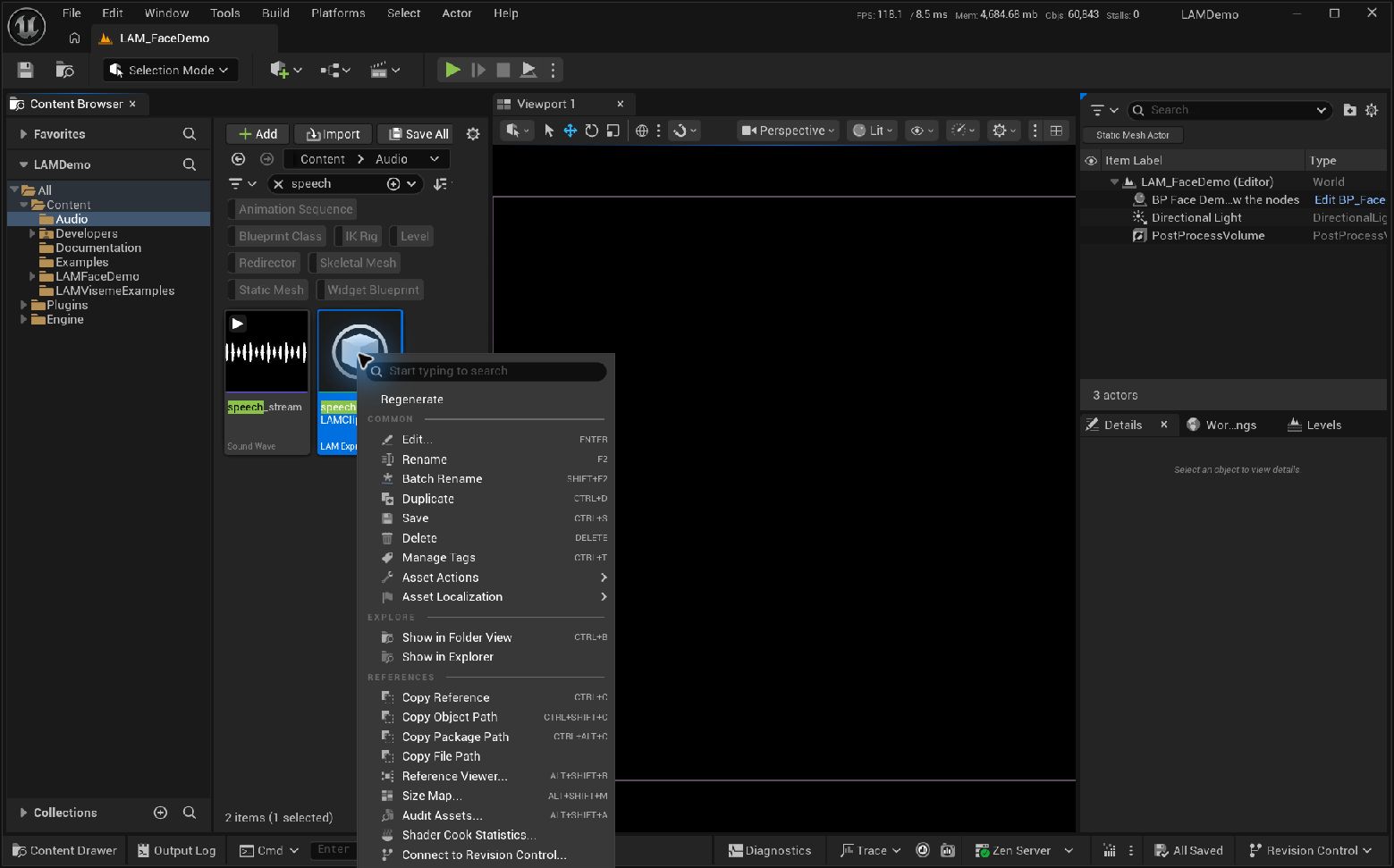
Regenerate a saved clip · Open full-size image
- Right-click the clip and choose Regenerate to use its stored settings.
Captured 2026-09-30 · UE 5.8.2 · Plugin 1860d0e · Demo 9dee71d · Operation included in v0.3.0.
Cook and package
Section titled “Cook and package”- Save the generated clips and their source SoundWaves.
- Reference clips from Blueprint or another asset so they are included in the cook.
- For management through soft references alone, include assets explicitly through Asset Manager or Additional Asset Directories to Cook.
- Check playback in cooked Development / Shipping builds.
Model packaging settings are unchanged. Saved-clip playback does not load the model, but this feature does not provide model stripping to reduce distribution size. Generation still requires the model, as do dynamic analysis and live input. Keep the existing model and packaging configuration.
Batch processing with Editor Utilities
Section titled “Batch processing with Editor Utilities”Obtain the LAMBakeSubsystem editor subsystem from an Editor Utility Blueprint or Python.
| API | Purpose |
|---|---|
GenerateClips(Sounds, Settings) |
Generate clips for SoundWaves with the supplied settings |
RegenerateClips(Clips) |
Regenerate using the recorded settings |
IsBusy / GetProgress / GetStatus |
Inspect progress |
GeneratedClips / Errors |
Retrieve completed clips and errors |
Cancel |
Cancel unfinished work |
A true return from a start function means the request was accepted, not that generation succeeded or assets were saved. A busy subsystem, PIE, or an empty selection prevents starting. Allow the editor to tick and check status from a timer or asynchronous callback. Waiting in a synchronous Python loop prevents processing from progressing. Check Errors and explicitly save generated assets after completion. API declaration
Examples and validation commands
Section titled “Examples and validation commands”Build the Editor target of Demo f3b6f13, then run the following from its project root. Use a test checkout: these tests generate and save /Game/Audio/*_LAMClip, /Game/Examples/BP_LAMBakedPlayback, and a test map.
./Tools/test_baked_clips.ps1 -Engine D:\Unreal\UE_5.8./Tools/package.ps1 -Configuration Development -IncludeBaked./Tools/package.ps1 -Configuration Shipping -IncludeBaked./Tools/test_playback_controls.ps1 -Configuration Development -IncludeBaked./Tools/test_playback_controls.ps1 -Configuration Shipping -IncludeBakedPlace the generated BP_LAMBakedPlayback in a level to preload on BeginPlay and play with Space. Tools/build_baked_examples.py uses the previously generated /Game/Audio/speech_stream_LAMClip and does not overwrite an existing Blueprint of the same name. Connect your own character mesh and AnimBP. Existing dynamic-analysis examples remain available.
The published 2026-09-28 record reports 12 successful automation tests and 18 playback cases across Editor / Development / Shipping. See baked-clip validation for numerical comparisons, measurements, and untested areas. These UE tests were not rerun when writing this guide.
Troubleshooting
Section titled “Troubleshooting”| Symptom | Check |
|---|---|
| Generation menu is missing | Install and enable v0.3.0, restart the editor, and select a SoundWave |
| Generation cannot start | Exit PIE, wait for another batch to finish, and check model settings and Output Log |
| Clip disappears after restarting | Use Save All after generation |
| Audio changes but expressions do not | Validate Assets → Regenerate → Save All. Generate from the source sound to change settings |
| Playback takes time to start | Check clip loading, audio preloading, storage, and audio buffers separately from analysis waits |
InvalidBakedClip |
Read the reason, then regenerate, save, and recook with a supported version |
| Failure occurs only in a packaged build | Check cooking of both Clip and SoundWave and completion of soft-reference loading |
See troubleshooting for general audio, expression, and model issues.
Sequencer integration (public source)
Section titled “Sequencer integration (public source)”In public source, LAM Dialogue places the saved Clip directly in Sequencer and edits audio and expressions in one section. Playback Blueprint events are unnecessary, but an AnimBP with Apply LAM is still required. See track setup, scrubbing and MRQ output. The dedicated track is not included in v0.3.0 ZIPs.